top 100 comments

sorted by: hot top controversial new old
[–] 189 points 1 year ago (44 children)
  • [–] 57 points 1 year ago (25 children)

    What the fuck!? How am I only learning this now, after years of linux as daily driver?!

  • source
  • parent
  • hideshow 25 child comments
  • [–] 40 points 1 year ago (17 children)

    Shit is usually a pain in the ass. The challenge is divining how much of a pain in the ass something has to be that someone else might have made a solution for it.

    I didn't know you could ctrl+shift+c to copy in the terminal until a month ago when my linux n00b wife said "there has to be a better way to do this. I've been right clicking to copy for 10 years.

  • source
  • parent
  • hideshow 17 child comments
  • [–] 24 points 1 year ago (6 children)

    most DE's have a thing where you can paste highlighted text using the middle mouse button

  • source
  • parent
  • hideshow 6 child comments
  • [–] 9 points 1 year ago (2 children)
  • [–] 6 points 1 year ago (3 children)

    you can also just use ctrl + insert for copy and shift + insert for paste.

  • source
  • parent
  • hideshow 3 child comments
  • [–] 3 points 1 year ago (1 child)

    I used to have shift insert in my muscle memory from Windows, but since my job has used a Mac since 2020 it's fallen out. I never knew Ctrl insert was copy, that's nifty! Another tool in the arsenal. It will be useful when copy in select isn't set and I don't know how to set it up lol.

  • source
  • parent
  • hideshow 1 child comment
  • [+] -6 points 1 year ago (3 children)

    Ctrl+c to copy, Ctrl+v to paste, Ctrl+z to undo last change (chain it multiple times to reverse time) hopes this helps, ctrl+tab also changes applications on macos and Linux to my knowledge. If you know anymore let's put them together

  • source
  • parent
  • hideshow 3 child comments
  • [–] 3 points 1 year ago (2 children)

    You're getting downvotes because Ctrl+C doesn't work in the terminal. That sends the kill command to the currently running application. You need the shift to tell the terminal program that you're trying to copy.

  • source
  • parent
  • hideshow 2 child comments
  • [–] 11 points 1 year ago (1 child)

    Congratulations! I remember where I was when I first learned it (in a noisy server room at the back of a machine shop).

    Now pair it with FZF for fuzzy finding -- it's surprisingly easy to set up, just following any guide. It's insanely useful. I find myself even doing things like typing:

    $ xinput --disable $(xinput --list | grep -i touchpad | grep 'id=[0-9]\+' -o | cut -d= -f2)  # Disable synaptic touchpad trackpad pointer
    

    commands with these like comments on the ends as sort of "tags" so I can ctrl+r search for them later. Yes, I know I could just use a named function, but this is like the step just before that--before I know if I'll be issuing the same command all the time, or just for the next couple weeks. (This one was from when I was resting my notebook on my laptop.)

  • source
  • parent
  • hideshow 1 child comment
  • [–] 8 points 1 year ago* (last edited 1 year ago)

    As usual, that's documented (we can RTFM).

    Before trying ctrl-s, you may want to disable software flow control: run stty -ixon & add it to your initialization files. Otherwise, you'll pause terminal output. ctrl-q resumes terminal output.

    stty reveals terminal special characters

    $ stty -a
    ⁝
    intr = ^C; quit = ^\; erase = ^?; kill = ^U; eof = ^D; eol = <undef>; eol2 = <undef>; swtch = <undef>; start = ^Q; stop = ^S; susp = ^Z; rprnt = ^R; werase = ^W; lnext = ^V; discard = ^O; …
    ⁝
    

    These special characters/keys often perform special functions. To illustrate

    • ctrl-d on empty input typically exits/logs out of interactive terminal applications (including shells)
    • ctrl-u discards input (useful for inputs like password prompts that don't echo input back)
    • ctrl-v inputs next character literally (such as tab)
  • source
  • parent
  • [–] 6 points 1 year ago (2 children)

    Just checking, because I learnt to type before I worked this out, and because surely someone reading doesn't know: press tab. Bash will fill in file names from your current directory.

    E.g. say you have files fred1file, fred2file, jim.

    Type f then press tab, it will fill to "fred". Then press 2 and press tab again and it will fill the full "fred2file".

    Have a play, it works in heaps of situations.

  • source
  • parent
  • hideshow 2 child comments
  • [–] 2 points 1 year ago* (last edited 1 year ago)

    Bash will also do autocomplete for cli programs that have autocomplete functionality. Try typing:

    git r<tab><tab>

    you'll see options for all the git commands that start with r. Often cli commands will have autocompletion for long (double dash) options.

    If you want to see all the commands that have auto complete available, look in:

    /usr/share/bash-completion/completions/

    There's a few other locations they can live, notably:

    /etc/bash_completion.d/ ~/.bash_completion ~/.local/share/bash-completion/completions/

    I don't know if there are more or if there is any variation per distro.

    You can also write your own bash completions. They can get pretty smart and context sensitive.

    Pretty good beginning tutorial:

    https://iridakos.com/programming/2018/03/01/bash-programmable-completion-tutorial

    edit - I should've mentioned that this isn't native to bash, it requires installation of bash-completion. But bash-completion is installed by default in many distros.

  • source
  • parent
  • [–] 12 points 1 year ago* (2 children)

    I'm not going to say how long I used linux before learning this. It isn't "this many days old", but it may as well be.

    I have 7 headless linux boxes running.

  • source
  • parent
  • hideshow 2 child comments
  • [–] 7 points 1 year ago (7 children)

    Even quicker with zsh or atuin: write the first few letters then arrow up to cycle through all matches

  • source
  • parent
  • hideshow 7 child comments
  • [–] 8 points 1 year ago (3 children)

    Even quicker with fish: Write the first few letters then it auto-suggests the last-run command matching that prefix (and then you can still arrow up to cycle through all matches).

    (There is also a zsh plugin for that, called zsh-autosuggestions.)

  • source
  • parent
  • hideshow 3 child comments
  • [–] 2 points 1 year ago (2 children)

    A lot of stuff assumes Bash, so occasionally when the syntax differs its slightly annoying; sometimes you have to modify a few lines of a file or something (or run it as in Bash manually). Fish is so nice though. It really should replace Bash for almost everyone. If you really need Bash you can still use it.

  • source
  • parent
  • hideshow 2 child comments
  • [–] 5 points 1 year ago (1 child)

    With script files, you can (and should regardless of Fish usage) put a shebang at the top, like #!/bin/sh or #!/bin/bash. Then it will run with Bash as you'd expect.

    I also recommend not setting Fish as your system-wide default shell (since then a missing shebang will cause it to run in Fish), but rather just have your terminal emulator start fish by default.

    And yeah, outside of scripting, if I notice a command requires Bash syntax (which you can often tell from Fish's syntax highlighting turning red), then I just run bash, execute the Bash command in there and then exit back out of there.

    Having said all that, I'm not trying to take away from your point. If I wasn't just joking around, I would caveat a Fish recommendation just as much.

  • source
  • parent
  • hideshow 1 child comment
  • [–] 2 points 1 year ago

    Yeah, it's just some scripts that come with programs sometimes not including that is the issue. Like I said, it isn't a big issue, just occasionally requires small edits if you try to run the script in Fish, or, like you said, running them with Bash.

  • source
  • parent
  • [–] 67 points 1 year ago* (last edited 1 year ago) (7 children)

    I used to be like this but people seriously. CTRL+R

    Do it. Don't make this one of those things you've heard about and just never got around to trying. Open your terminal right now and CTRL+R and type any part of the command you did before. If the command you want is not showing first just hit CTRL+R again to go to the next one back.

    DO IT.

    Edit: I did learn from this thread today though that ZSH has it set to where you can just type part of what you're looking for then hit up to do the same thing. Neat!

  • source
  • hideshow 7 child comments
  • [–] 64 points 1 year ago (4 children)
  • [–] 1 point 1 year ago (2 children)

    The worst is when you remember doing something before, but don't remember enough details to be able to effectively search for it.

    Although, even then, I'm not going to just mindlessly hit "up". Last time it happened I fed my command history through grep and removed all the things that I knew the command wasn't. Just removing "ls" and "cd" from your history cuts the number of commands down by 80% or something.

  • source
  • parent
  • hideshow 2 child comments
  • [–] 94 points 1 year ago (5 children)
  • [–] 3 points 1 year ago (4 children)

    I love this one but is the gif moving at 0.5 frames a second or is it just me

  • source
  • parent
  • hideshow 4 child comments
  • [–] 40 points 1 year ago

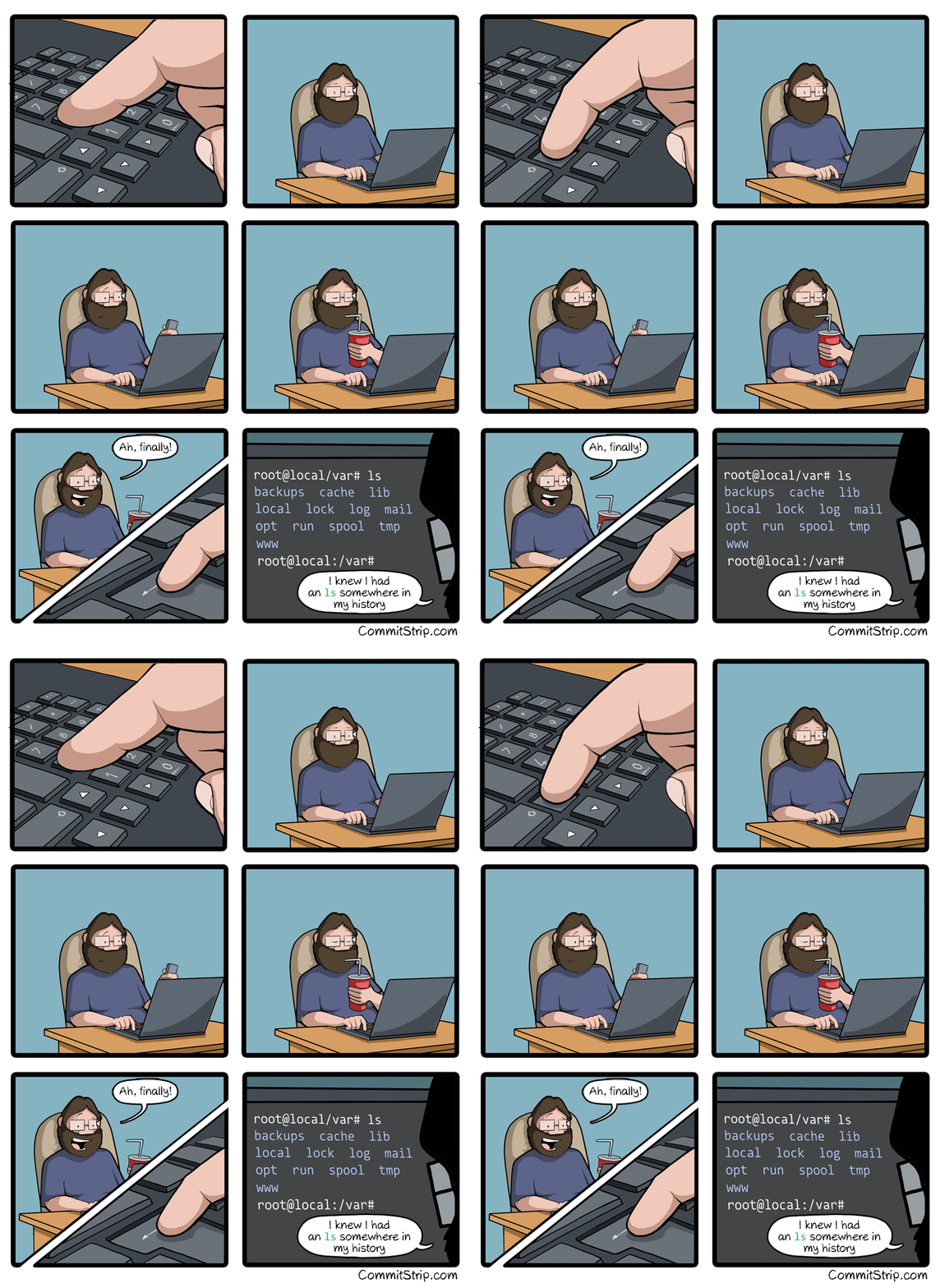
    What, and type 'ls' again?

  • source
  • [–] 27 points 1 year ago* (last edited 1 year ago) (2 children)

    Ctrl + R and start typing the command, it'll come up, press enter. Im just more lazy because I know there are still faster ways.

    Edit: instead of hitting enter, keep pressing ctrl + R to cycle through history commands that contain what you typed in

  • source
  • hideshow 2 child comments
  • [–] 20 points 1 year ago (1 child)

    More like ⬆️⬆️⬆️⬆️⬆️⬆️ mother fucker ⬇️

  • source
  • hideshow 1 child comment
  • [–] 2 points 1 year ago*

    ⬆️⬆️⬆️⬆️⬆️⬆️⬆️⬆️⬆️⬆️

    CTL+C

    history

    history | less

    ⬆️⬆️⬆️

    Pg-up

    ...

    Pg-up

    ...

    q

    ! 2648

  • source
  • parent
  • [–] 20 points 1 year ago* (7 children)

    Pretty much, yeah.

    Rather than jot down in a text file the various ffmpeg commands I use frequently...

    Raktajino@laptop:~/Downloads$ history | grep ffmpeg
       12  sudo apt install audacity gimp ffmpeg mplayer
      184  history | grep ffmpeg
      215  ffmpeg -i source.mkv -ss 629 -t 7 out.mkv
      217  ffmpeg -i out.mkv -s 0.5 -vf scale=1280:720 out.mp4
      218  ffmpeg -i out.mkv -ss 0.5 -vf scale=1280:720 out.mp4
      231  ffmpeg -i out.mp4 -vf "subtitles=out.srt" final.mp4
      503  ffmpeg -i toofat.wav toofat.mp3
      ...
      682  history | grep ffmpeg
      684  ffmpeg -i 1.gif -i 2.gif -filter_complex "[1:0] [2:0] concat=n=2" out.gif
      685  ffmpeg -i 1.gif -i 2.gif -filter_complex "[1:0] [2:0] concat=n=2:v=1" out.gif
      686  ffmpeg -i 1.gif -i 2.gif -filter_complex "[1:0] [2:0] concat=n=2:v=1" -map '[v]' out.gif
      687  history | grep ffmpeg
      688  ffmpeg -i 1.gif -i 2.gif -filter_complex "[0:0] 12:0] concat=n=2:v=1" -map '[v]' out.gif
      689  ffmpeg -i 1.gif -i 2.gif -filter_complex "[0:0] 1:0] concat=n=2:v=1" -map '[v]' out.gif
      690  ffmpeg -i 1.gif -i 2.gif -filter_complex "[0:0] [1:0] concat=n=2:v=1" -map '[v]' out.gif
      691  ffmpeg -i 1.gif -i 2.gif -filter_complex "[0:0] [1:0] concat=n=2"  out.gif
      694  history | grep ffmpeg
    
  • source
  • hideshow 7 child comments
  • [–] 2 points 1 year ago (3 children)

    I'm begging you to use CTRL+R

  • source
  • parent
  • hideshow 3 child comments
  • [–] 1 point 1 year ago (2 children)

    If you have a fzf or other plugin installed, great. the vanilla Ctrl R is kinda mid in most shells IMO

  • source
  • parent
  • hideshow 2 child comments
  • [–] 1 point 1 year ago* (last edited 1 year ago)

    You're gonna love once you start

    1. tagging your ffmpeg commands like do a thing # dothingname

    2. Just !?dothingname later to recall it and run it.

    Its a little easier to NOT accidentally !?alt and discover halt is matched first.

  • source
  • parent
  • [–] 17 points 1 year ago (1 child)
  • [–] 16 points 1 year ago (2 children)

    history | grep β€˜part of the command I remember’

  • source
  • hideshow 2 child comments
  • [–] 13 points 1 year ago (15 children)
  • [–] 19 points 1 year ago (5 children)

    CTRL+R [the thing]

    please i beg you

  • source
  • parent
  • hideshow 5 child comments
  • [–] 5 points 1 year ago (4 children)

    with grep I see all the alternatives, Ctl+R just shows me one

  • source
  • parent
  • hideshow 4 child comments
  • [–] 6 points 1 year ago

    For me ctrl-r is faster most of the time, history | grep [command] is better if I can't easily pattern match (don't remember it exactly, using several flag variations, etc.). they're both good tools.

  • source
  • parent
  • [–] 6 points 1 year ago (3 children)

    Ppsshh. Not lazy enough. Create that in a script and call it "hgrep" and drop it into path.

  • source
  • parent
  • hideshow 3 child comments
  • [–] 5 points 1 year ago* (2 children)

    i was doing cat ~/.bash_history | grep thing which is stupid so i started doing grep "thing" ~/.bash_history

    now you're telling me i should do history | grep thing

    i can't win

  • source
  • parent
  • hideshow 2 child comments
  • [–] 5 points 1 year ago (1 child)

    Some would call the former command cat abuse.

    In short, unless you want the contents of a file printed to stdout (or multiple files concatenated), the command can probably be written without cat, instead using the filename as an argument (grep pattern file) or IO redirection (cmd < file).

    Stylistics and readability are another thing though.

  • source
  • parent
  • hideshow 1 child comment
  • [–] 13 points 1 year ago

    history | grep then !cmd_number

  • source
  • load more comments
    view more: next β€Ί