Warning: Do this at your own discretion, I am not responsible for your controller!
Still working, as of October 2026.
Preamble
Sometime during the August of 2024, Sony abandoned their still-functioning Firmware Updater Tool (you get a "can't connect to the server" message and it doesn't let you download the firmware) and replaced it with the PlayStation Accessories app.
Currently, Playstation Accessories does not run on wine at all, so I decided to try and get the previous tool (I'll call it FWUpdater) working again.
Upon launching, PlayStation Accessories connects to playstation's server (https://fwupdater.dl.playstation.net/fwupdater/info.json) to check if its own version is up-to-date and if there is a new firmware for the controllers. As it seems, FWUpdater uses the same URL to check its version as well. As these are completely different programs, and the server reports the latest version for PlayStation Accessories now, FWUpdater panics and just displays "can't connect to the server".
After some experimentation, I figured out I could just spoof the version response from the server (with mitmproxy) and get FWUpdater to fetch the necessary firmware. The following guide should keep working as long as Sony doesn't either: change the above URL, or decide to sunset the Playstation Accessories app as well.
Prerequisites
Ensure everything is up-to-date
- Python
- Wine
- A Browser
- A Terminal
Process
Step 1: mitmproxy
a. Install mitmproxy from your package manager (or grab the latest binaries from
mitmproxy.org and open a terminal in the mitmproxy folder.)
b. Run mitmproxy in the terminal.
c. Setup your browser (in the browser's proxy settings) to connect to mitmproxy (address set to localhost and port set to 8080):

d. Goto mitm.it and you should see the certificates:

e. Download the Linux certificate and install them to your system trust store, following the instructions on the above page for your specific distro (for Arch Linux, you move the certificate into /etc/ca-certificates/trust-source/anchors/ and run sudo update-ca-trust).
f. Revert the proxy settings in your browser and close mitmproxy.
Step 2: FWUpdater
a. Download the FWUpdater and extract it.
b. Create a new empty file, paste the following in and save it as a python script (.py):
from mitmproxy import ctx
from mitmproxy import http
import json

def response(flow: http.HTTPFlow) -> None:
    if flow.request.pretty_url.endswith("/fwupdater/info.json"):
        data = json.loads(flow.response.get_text())
        data["ApplicationLatestVersion"] = "1.5.0.2"
        flow.response.text = json.dumps(data)
Step 3: Profit
a. Start mitmproxy in a terminal with the script:
mitmproxy -s "path/to/the/above/script.py"
b. Start FWUpdater with the following command:
HTTP_PROXY="http://localhost:8080/" wine "path/to/FWUpdater.exe"
Repeat Step 3 everytime you want to run the updater.
Problems
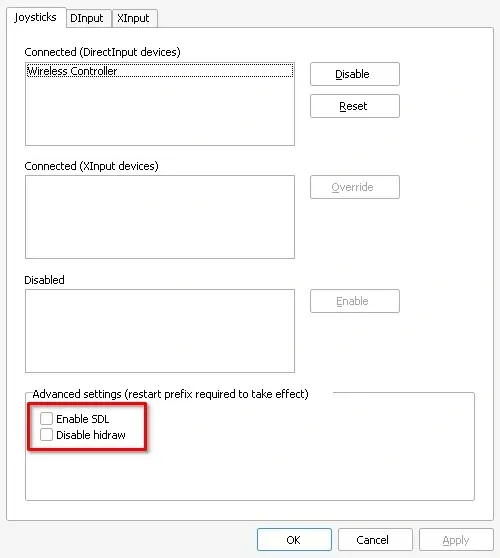
1. "FWUpdater doesn't detect controller"
a. Run wine control joy.cpl, change one of the advanced settings (unchecking "Disable hidraw" should fix it in most cases), and run FWUpdater again:
Hope this helps (And I hope I didn't miss anything lmao)
1 comment