Try nix, its esentially JSON with functions
comments
Spoken like a true ignorant noob. JSON is hot fucking garbage. TOML is ok. Plaintext is GOAT.
linux already has a standard, which it inherited from unix: plain text.
structured text is good but there is always some edgecase that needs to be worked around. plain text is universal.
there are alno verification functionality in basically every core utility.
Of course a challenge in the Linux ecosystem would be coordinating this change to happen widely and at once (which is important from a UX perspective). Since each of the aforementioned files belongs to a different project, and each project has its own maintainers that would need persuading (or rather inviting to the table to agree on a single format).
comment on
3 Questions from a Windows refugee and Linux noob regarding NTFS drive, partitioning, and Steam.
GParted is very reliable, but never do any disc operation without a tested backup in hand. Honestly the first and best self hosted thing you can do is a NAS backup.
I'll be living the that NTFS drive for a while then as I look for deals for storage during this dreadful AI hype shit.
comment on
3 Questions from a Windows refugee and Linux noob regarding NTFS drive, partitioning, and Steam.
The GParted project distributes their own disk recovery ISO which I blanket recommend to everyone.
comment on
3 Questions from a Windows refugee and Linux noob regarding NTFS drive, partitioning, and Steam.
-
GParted is very reliable, but never do any disc operation without a tested backup in hand. Honestly the first and best self hosted thing you can do is a NAS backup.
-
That Fedora default is a great default for any residential Linux install. You mentioned earlier wiping your NVMe for Linux. That is a sound choice.
comment on
3 Questions from a Windows refugee and Linux noob regarding NTFS drive, partitioning, and Steam.
I saw GParted on the CachyOS ISO. I'm sure it's on other distro's ISO. I can give that a look.
comment on
3 Questions from a Windows refugee and Linux noob regarding NTFS drive, partitioning, and Steam.
Thank you for replying.
1: for general computing, like storing your photos, documents, etc, just fine. I wouldn’t store a database or run programs from it.
Noted. I won't be running any self-hosting or installing programs on it. It's almost full with photos, docs and videos as is. I'll have to see if I can get a deal on storage to back up the files and reformat it down the line. Someone suggested to do partition magic and honestly I'm afraid to do it haha.
2: always, even if not distro hopping. You can use a volume aware filesystem like Btrfs and have @ mounted on / and @home mounted on /home, so you don’t have to pre allocate space for one or another. Many distros will detect this setup and smartly use snapshots to revert upgrades without touching your home dir.
Interesting thing I saw yesterday when I "test run" to install Fedora KDE Plasma on a USB stick. I didn't go through with it, but I noticed that the installer suggest to partition my drive as such:
sdc1 - format as efi - /boot/efi
sdc2 - format as efi - /boot
sdc3 - format as btrfs subvolume - /
sdc4 - format as btrfs subvolume - /home
Is that a good default? on the page that ask whether to install fedora side by side another OS, full wipe, or manual partition, I noticed that whatever drive I want to use it already have to be non Windows friendly. In my case, my nvme is in NTFS naturally, my HDD is in NTFS as well, and my test USB stick is in exfat.
(I copied this on my main post as well for others finding this post later)
comment on
3 Questions from a Windows refugee and Linux noob regarding NTFS drive, partitioning, and Steam.
No, you do the copying and resizing on Linux. Look for a live USB for GParted, put it on an actual usb drive. It's a great recovery tool to have around.
comment on
3 Questions from a Windows refugee and Linux noob regarding NTFS drive, partitioning, and Steam.
1: for general computing, like storing your photos, documents, etc, just fine. I wouldn't store a database or run programs from it.
2: always, even if not distro hopping. You can use a volume aware filesystem like Btrfs and have @ mounted on / and @home mounted on /home, so you don't have to pre allocate space for one or another. Many distros will detect this setup and smartly use snapshots to revert upgrades without touching your home dir.
comment on
3 Questions from a Windows refugee and Linux noob regarding NTFS drive, partitioning, and Steam.
Well, it is another method, even if tedious lol. Thanks
comment on
3 Questions from a Windows refugee and Linux noob regarding NTFS drive, partitioning, and Steam.
You can also just copy/paste the game's folder and its appmanifest.acf file. The next time you start Steam it'll be in your library ready to play.
I just did this yesterday, moving games from my Windows nvme to my Bazzite nvme.
Only down side is you have to open every .acf file in a text editer one by one to find out which game its for, lol.
comment on
3 Questions from a Windows refugee and Linux noob regarding NTFS drive, partitioning, and Steam.
You need to back up your files to another drive in either case. If anything goes wrong while resizing partitions you can lose everything.
And, now that you've got a backup, it turns out that nuking the partition, creating a new one, and copying the files back is much faster than resizing.
comment on
3 Questions from a Windows refugee and Linux noob regarding NTFS drive, partitioning, and Steam.
If you have enough space, or can create enough space, for a new partition in a better format, you can always move some files to the other partition, then shrink the NTFS partition to make space for extending the new partition, copy some files once again, and continue until done.
Oh? I never came across this way when I was researching. So currently I have like 280GB out of 1.8TB of free space of that drive. so I can partition that free space in say extfat, if I do it on Windows?
I assume it has to be on windows because I copy over the files from the NTFS partition to the example exfat partition, shrink the NTFS partition, expand the exfat partition, and repeat.
Or, you borrow a large hard drive from someone, copy all files on it, nuke the NTFS partition, create a new partition in another format, then copy the files from the borrowed hard drive back on the new partition.
But this is the simplest way. I'll ask my friends if they have spare 2TB I can borrow.
comment on
3 Questions from a Windows refugee and Linux noob regarding NTFS drive, partitioning, and Steam.
Thank you. Honestly I never used that one, so TIL I guess.
comment on
3 Questions from a Windows refugee and Linux noob regarding NTFS drive, partitioning, and Steam.
Back when I still kept my Windows partition I would create a fat32 partition to hold the files being shared between different operating systems. I would link the media directories from the user's directory to this partition (Documents, Pictures, etc.).
I avoided installing apps on the shared partition except for the linux version of steam. I would share steam between different distros this way. I never had issues, but I don't often play heavy resource games.
I would occasionally mount the ntfs drive in linux to grab a file. Otherwise it was only used by windows.
Eventually I got tired of all the workarounds with windows and wiped it.
comment on
3 Questions from a Windows refugee and Linux noob regarding NTFS drive, partitioning, and Steam.
If you have enough space, or can create enough space, for a new partition in a better format, you can always move some files to the other partition, then shrink the NTFS partition to make space for extending the new partition, copy some files once again, and continue until done.
Or, you borrow a large hard drive from someone, copy all files on it, nuke the NTFS partition, create a new partition in another format, then copy the files from the borrowed hard drive back on the new partition.
Or a combination of these two.
comment on
3 Questions from a Windows refugee and Linux noob regarding NTFS drive, partitioning, and Steam.
I’ve never used the first option. I was meaning the second one. That’s how I moved my files over. When restoring it, steam automatically downloads the required files for Linux.
comment on
3 Questions from a Windows refugee and Linux noob regarding NTFS drive, partitioning, and Steam.
Yeah the NTFS drive is a real road block when I have hyped myself up to change to linux for good on my PC. Everything I'm willing to wipe from my C: drive (the NVMe OS drive) I have backed up to the NTFS drive and my portable SSD, but I don't really want to work out of that portable SSD in the long term. Edit: nor that I can work out of that portable SSD in any serious capacity because I checked and it's only 500GB.
comment on
3 Questions from a Windows refugee and Linux noob regarding NTFS drive, partitioning, and Steam.
Thank you for replying. Is the steam game backup/restore the setting option on steam to move steam games between different drives:
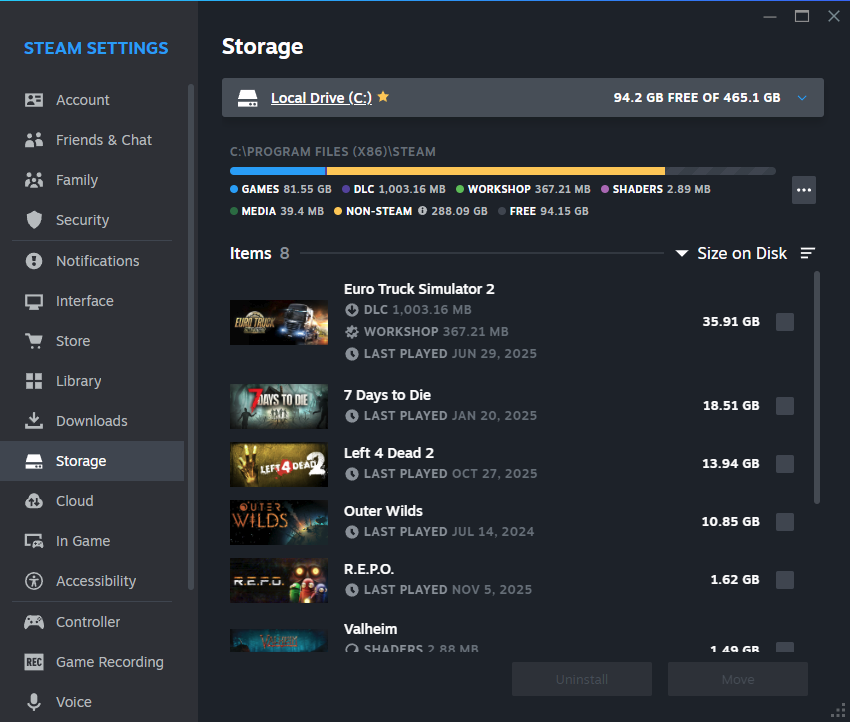
Or this one?:
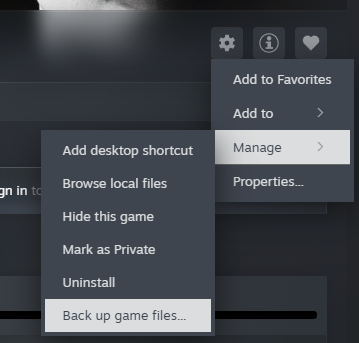
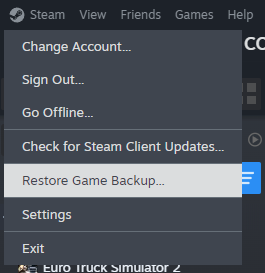
You are better off going to Linux discords and forums and chatting with humans that have experience.
I check out the source that AI cites and go from there. This is usually in conjunction with using other search engines as well that's not Google.
comment on
3 Questions from a Windows refugee and Linux noob regarding NTFS drive, partitioning, and Steam.
What I will say is that Claude has actually helped me deal with some niche drive partitioning issues, which I try and cross-check against human forum info. It was similar to your issue, I have an NVMe SDD in a container and wanted to dual boot to Windows in that when I felt like it. The real assist was, as a noob, getting it to take forum advice and give me step by step guidance.
Claude got me close, and ChatGPT is the worst of them all and basically wanted to do random stuff that wouldn't have ever worked.
But, I also agree that an external NTFS drive sounds like a nightmare. Even pulling files from old HDDs recently, it's just not a great mix.
comment on
3 Questions from a Windows refugee and Linux noob regarding NTFS drive, partitioning, and Steam.
Gaming on Linux and NTFS do not mix. You will run into lots of errors and crashes. For steam games, you can use the backup/restore function to copy games over from the NTFS drive to a non NTFS drive.
Also I highly recommend not using AI at all for questions. It has about a 95% error rate. It will give you incorrect or hallucinated information.
You are better off going to Linux discords and forums and chatting with humans that have experience.
Haven't done much with Windows for a long time, but IIRC Windows looks in the current directory for DLLs by default, and it has it in subdirectories. IIRC, there's some way to make an app search relative directories in the exe and maybe the Ginger guys dicked that up? WINE seems to run it if I move the DLLs into the base directory.
$ wget https://github.com/DominaeDev/ginger/releases/download/release-1.6.2/ginger_v1.6.2.zip
$ unp -U ginger_v1.6.2.zip
$ cd ginger_v1.6.2/
$ wine Ginger.exe
Unhandled Exception:
System.TypeLoadException: Could not load type of field 'Ginger.SpellChecker:s_Hunspell' (0) due to: Could not load file or assembly 'NHunspell, Version=1.2.5554.16953, Culture=neutral, PublicKeyToken=1ac793ea843b4366' or one of its dependencies.
$ mv Libraries/x64/* ./
$ wine Ginger.exe
And then it works.
EDIT: Hmm. I was thinking that Windows might have something like -rpath to search relative paths for DLLs, but it sounds like it doesn't:
https://ibob.bg/blog/2018/12/16/windows-rpath/
Anyway, you should know that on other operating systems when linking with a shared library (.so or .dylib file), you can supply a search path for it to the linker itself. In fact, to some people’s occasional frustration, the default search path when linking with no specific arguments is the absolute path to the shared library. This search path is called an rpath.
If you do multi-platform programming, you’ve probably experienced frustration with the lack of rpaths on Windows.
If you’re not a Windows programmer, I don’t know why you’re reading this article, but to put it simply: In Windows, shared libraries, or DLLs, don’t have rpaths. Instead the executable searches for a shared library by filename in a variety of places which you cannot control when building the executable. It searches the files in the same directory as the executable, then files in your PATH environment variable, and some other insignificant places. And if the DLL isn’t there?…
When dealing with third party libraries, you typically don’t have such fine control over where their DLL files end up, so copying them alongside your executables is often the choice. This is probably the most popular solution for third party libraries. It’s employed by many existing package managers. This requires a common output directory6 and carries with it the drawbacks of having one, but it’s also wasteful, having multiple copies of the same files over and over again.
To avoid this waste there’s another popular approach here and that is copying or installing third party DLLs to some directory in your PATH. This fixes the problem of filename clashes, but introduces a new one: the so called DLL Hell. DLL Hell is when you have multiple DLLs with the same name in your PATH. Executables will automatically load the first one which matches, but that may not be what you want. There might be differences in version or Debug/Release differences. Such problems are hard to detect and often lead to crazy behavior or, worse, subtle and hard to detect bugs. There is a way to deal with that on Windows (I mentioned redirection manifests above), but it requires you to have control over the DLLs as opposed to the executables. If a third-party vendor doesn’t support redirection manifests, it may be really hard to add them on your own.
So it sounds like copying DLLs a la what I did above isn't an unheard-of approach...
yt-dlp and Jdownloader2 work most times